Beta Catchers Match Pilot — Participant Tutorial
Welcome
Thank you for joining the Beta Catchers Match Pilot! You’re about to help Alzheimer disease research in a very direct way. Volunteers like you have already marked thousands of possible lesions — small signs of disease — in real brain tissue images. Your job in this pilot is to help us clean up and combine those markings by answering one simple question, over and over:
Are these two markers pointing at the same thing, or at two different things?
Each answer takes a few seconds. No medical background is needed — the tutorial below shows you everything.
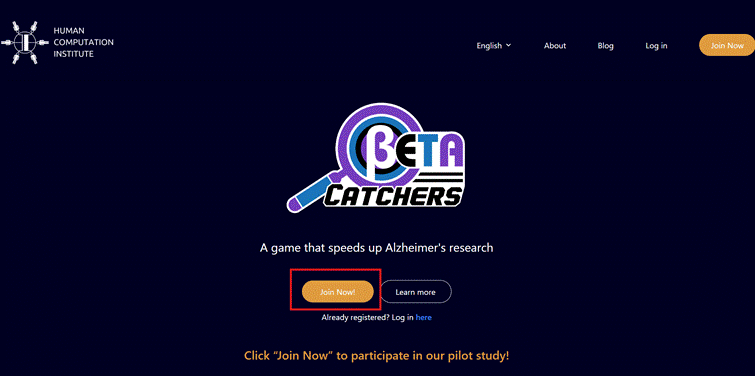
Getting started
- Go to match.betacatchers.com. Switch between English and Español from the language menu at the top.
- Click “Join Now” to open the sign-up page. If you already have an account, use “Log in here” instead.
- On the “Sign up” page, enter a Username and your Email, then click “Sign up.” You can set your password later.
- The demographics survey is optional — the checkbox reads “I agree to participate in an anonymous demographic survey.” Leave it checked to take part, or uncheck it to skip. Either way, your answers stay anonymous and are never linked to your account or your work.
- After signing up, you land directly in the match task.

Returning later? Just go to match.betacatchers.com and log in — you’ll pick up right where you left off.
The match task
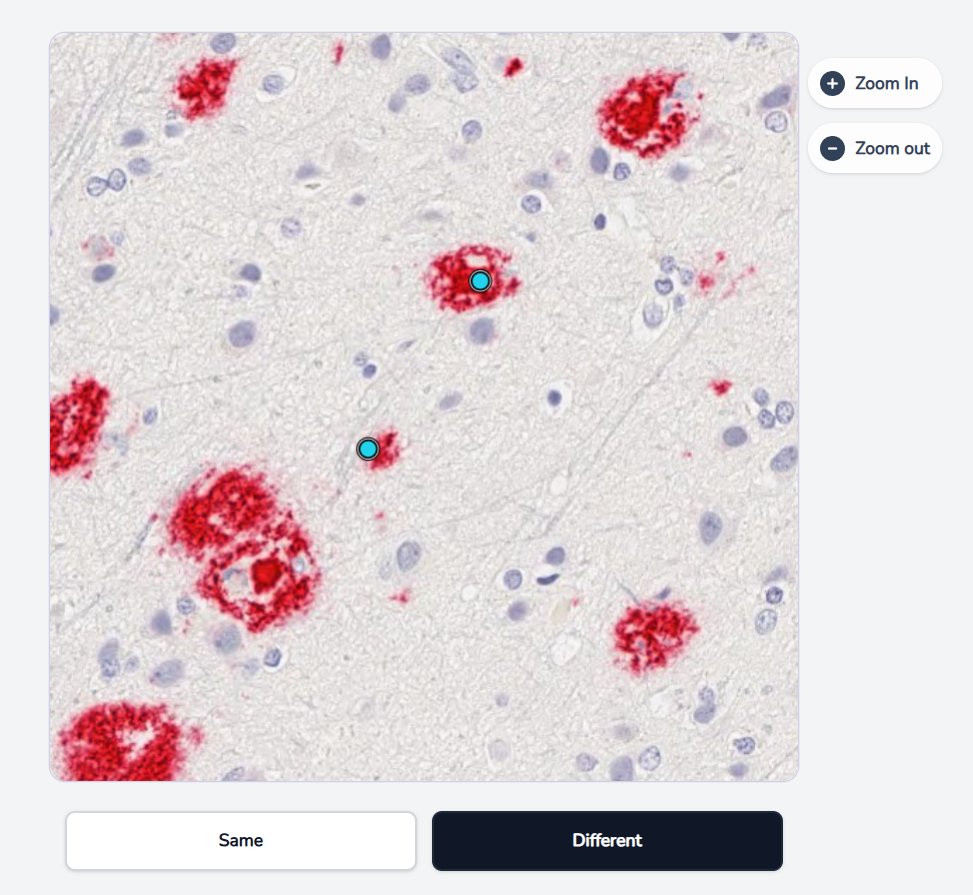
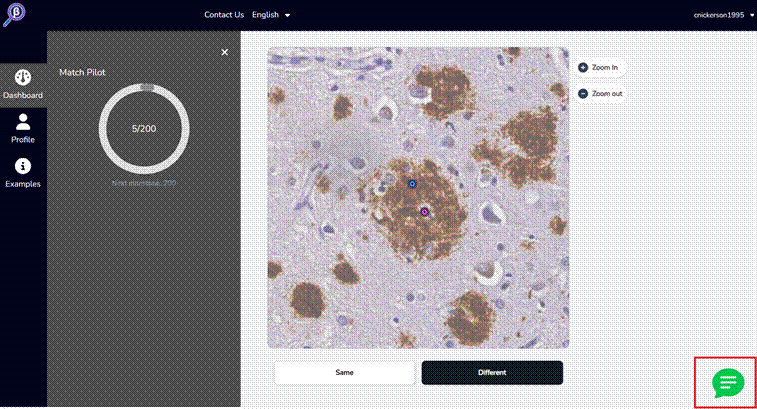
The virtual microscope shows you a photograph of brain tissue with two colored dots on it. Each dot is a marker placed by an earlier volunteer who thought they saw a lesion there. The app asks:
“Are the two marked regions the same object or two different objects?”
- Tap Same if both dots are pointing at the same lesion.
- Tap Different if they’re pointing at two different lesions — or if one of them isn’t pointing at a lesion at all.
Your answer is saved the moment you click — there’s no separate submit step, and you won’t lose any work by closing the page.
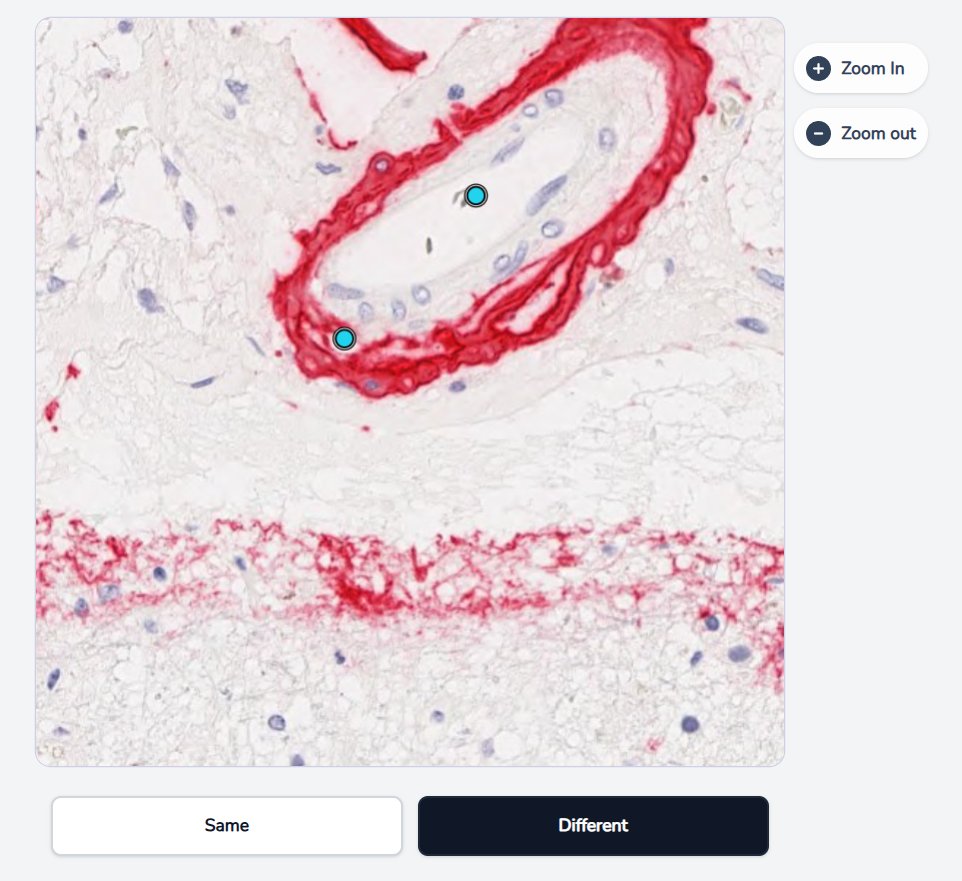
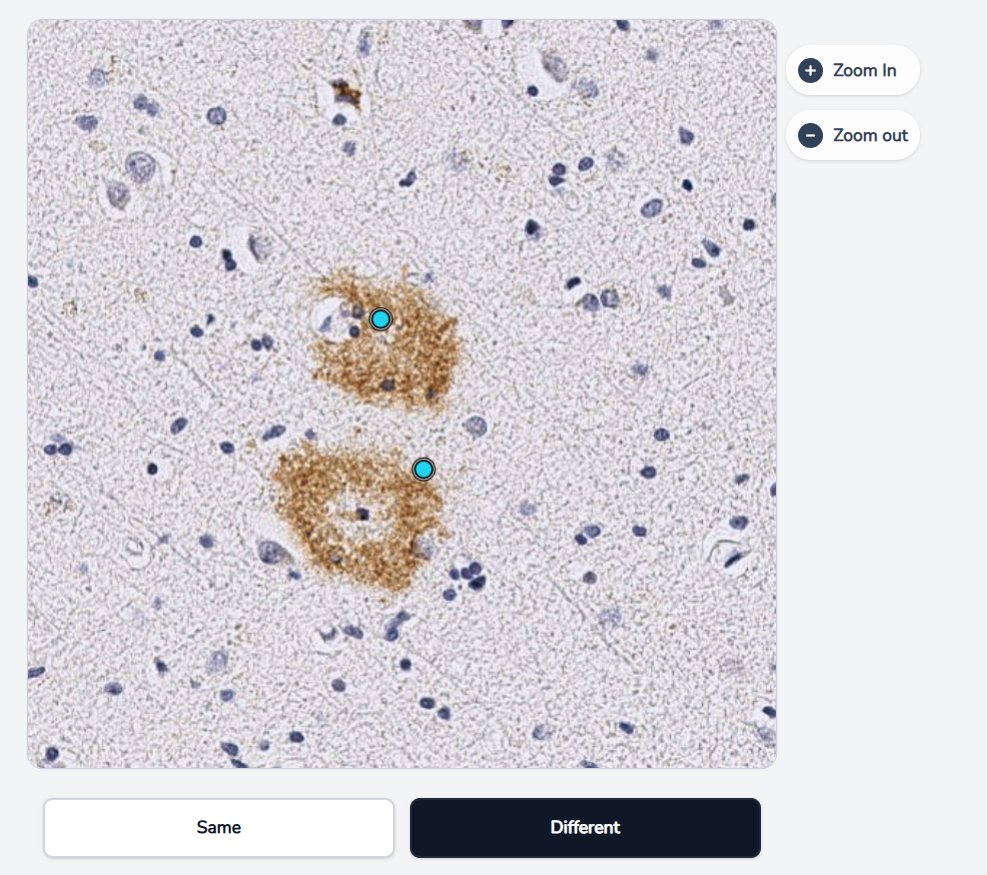
Use the Zoom In / Zoom out buttons (or pinch on a phone) to look closer before deciding.
What the dots tell you
You’ll be looking at different types of lesions:
- A cored plaque, a compact, dense lesion. It looks like a bullseye.
- A CAA (cerebral amyloid angiopathy), which looks like a ring and can be long, curved, or bean-shaped.
The Examples panel (plaque types)
Not sure what a cored plaque or a CAA looks like? Tap Examples at any time. It shows reference images of each lesion type.
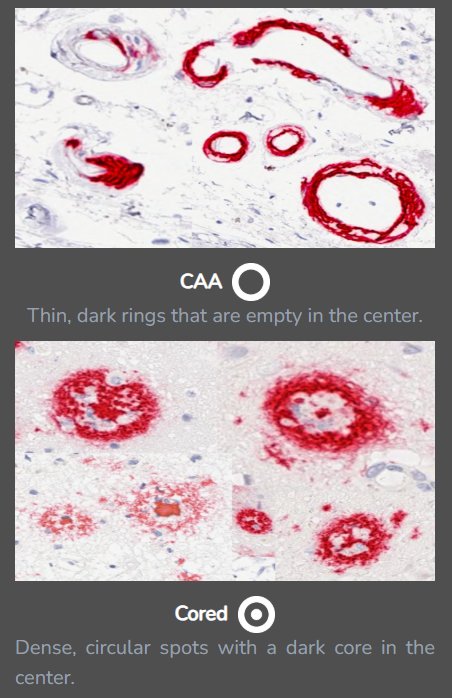
Same/Different Examples
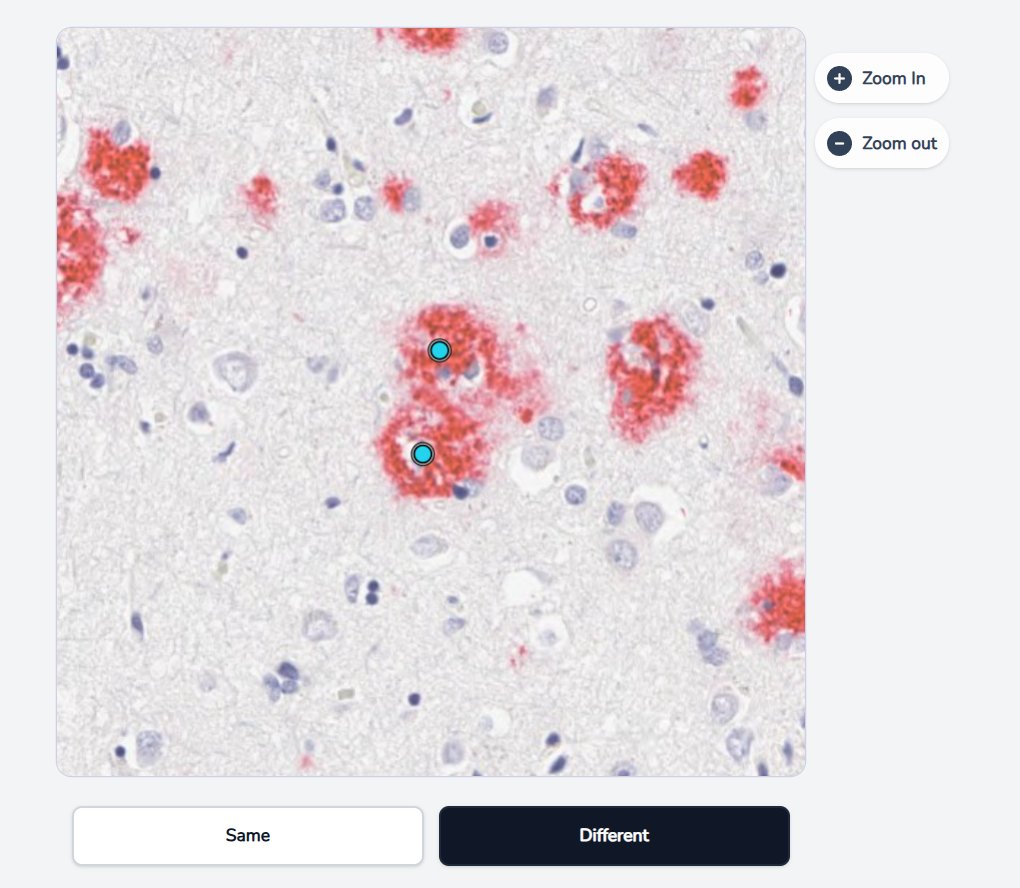
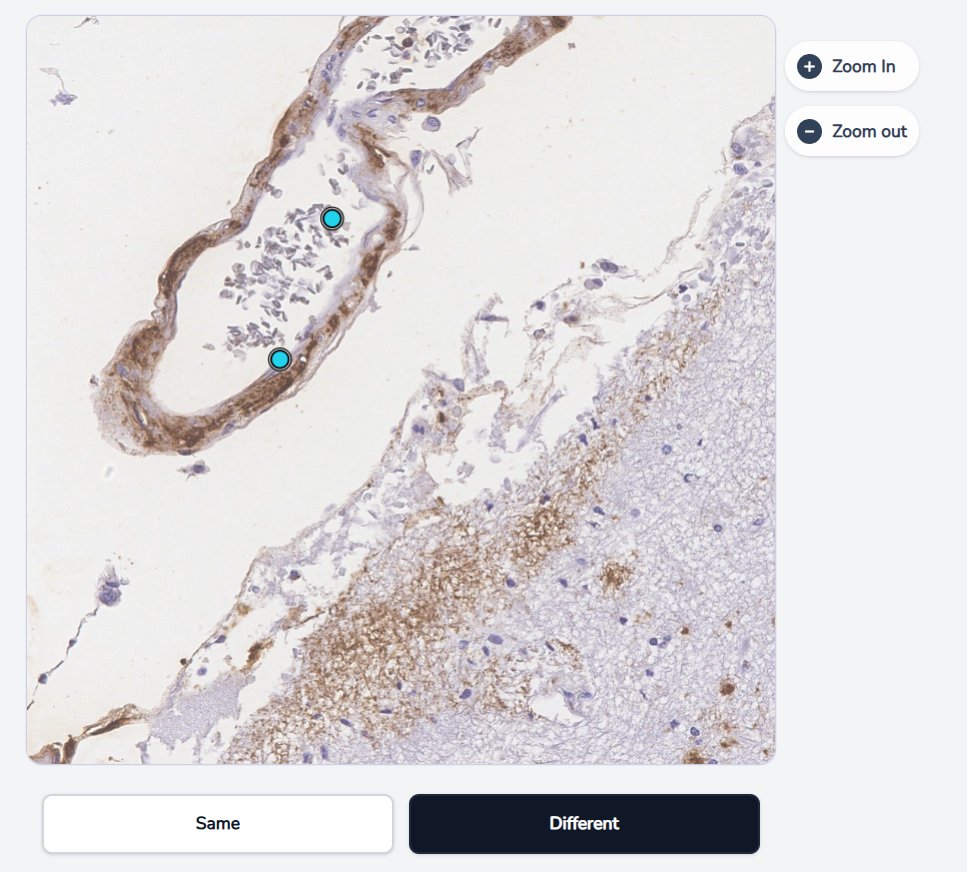
Here are a few real pairs so you can see what Same and Different look like. Once you’ve seen a handful, most pairs are quick. Don’t overthink the rules.
Cored plaques (dense, circular spots with a dark core in the center)
CAA (thin, dark rings that are empty in the center)
Close calls
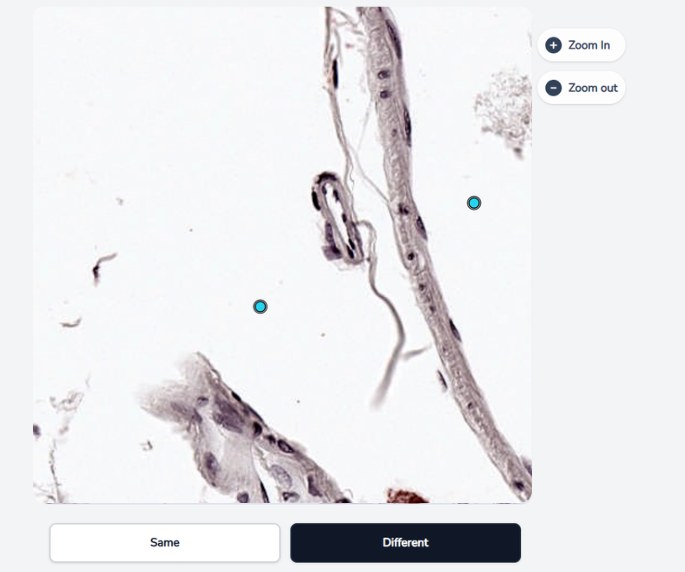
Some pairs are hard, and even we don’t always agree. Sometimes one or both dots land on empty space instead of a clear object, and that is not a mistake. When that happens, just use your best judgment to decide whether they might be pointing toward the same thing. Give your best answer and move on.
Your progress
Open the Dashboard (left sidebar on a computer, or the ☰ menu on a phone) to see your progress ring. It counts the comparisons you’ve completed toward your next milestone — the first is 200, and after that a new one appears every 50.
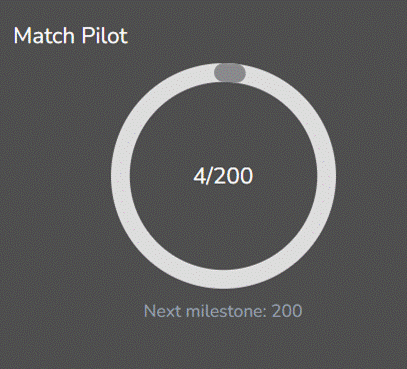
When you reach a milestone, you can end the pilot or continue. The app will offer you a choice: “Stop here” or “Keep going.” Both are perfectly fine. Stopping takes you to a brief, optional exit survey.
If you’re a fast worker, you may occasionally see “You’ve caught up!” — that just means you’ve reviewed every comparison currently available to you. New ones appear as other volunteers vote, so feel free to finish for the day or check back later.
Breaks, phones, and languages
- Breaks: if you walk away mid-session, the app will ask whether you want to continue; after a longer idle period, it ends the session for you. Either way, every answer you’ve given is already saved — log back in any time and pick up toward your milestone.
- Phones and tablets: the task works on mobile, and the ☰ menu gives you everything the desktop sidebar has: Dashboard, Stats, Profile, Tutorial, Contact Us, language switching, and Logout.
- Language: switch between English and Español any time — from the switcher in the top bar (computer), the ☰ menu (phone), or your Profile settings. Your choice is remembered the next time you log in.
Chatting with other Catchers
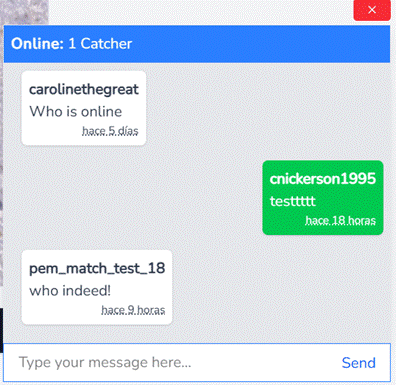
Beta Catchers has a small community built in. Tap the green chat button in the bottom-right corner to open a live chat with other volunteers working at the same time — the header shows how many people are around right now, like “Online: 8 Catchers.”
Type a note in the “Type your message here…” box and hit “Send.” It’s a friendly place to say hello, ask about a tricky pair, or cheer each other on. Keep it kind and on-topic, and don’t post anything private, since other Catchers can see what you write. For anything you’d rather send just to us, use “Contact Us” instead.
Questions or problems?
Use Contact Us (top bar on a computer, ☰ menu on a phone) to send us a message right from the app — we read everything and reply by email.
Frequently asked questions
My goal said 200, and now it says 250. Why?
You hit your first milestone — congratulations! 200 is the pilot’s suggested contribution, not a limit. Each new milestone is an invitation to keep going, never an obligation, and you can stop at any one with our thanks.
Do I need to worry about getting one wrong?
No. Every pair is shown to several volunteers, and it’s the combined answer that counts — just give your honest best judgment.
It says “You’ve caught up!” Is something broken?
No — you’ve simply reviewed everything currently available. New comparisons appear as other volunteers vote, so come back later, or finish now if you’re done.
I made a mistake, can I go back and change my answer?
Nope — but don’t worry about it. Other volunteers will answer and the high vote wins.
Is my work saved if I close the browser?
Yes. Every answer is saved the moment you tap it.
Who sees my demographics survey answers?
The survey is anonymous — answers are not connected to your account or your annotations, and skipping it doesn’t change your participation in any way.